Comment faire lire votre PDF à voix haute
Découvrez les meilleures façons de faire lire vos PDF à voix haute sur tous vos appareils, des fonctions intégrées d'iOS et d'Edge aux lecteurs IA en ligne.
Dans notre quotidien effréné, trouver le temps de lire un long document PDF n’est pas chose facile. Que vous soyez étudiant avec une pile d’articles de recherche, professionnel noyé sous les rapports, ou simplement quelqu’un qui préfère écouter plutôt que lire, la synthèse vocale (TTS) change tout.
Faire lire votre PDF à voix haute vous permet non seulement de faire plusieurs choses à la fois, en « lisant » pendant vos trajets ou vos tâches ménagères, mais aussi de ménager vos yeux et d’améliorer l’accessibilité pour les personnes malvoyantes. Voici les méthodes les plus efficaces pour transformer vos PDF en livres audio.
1. Les fonctions d’accessibilité intégrées d’iOS
Si vous utilisez un iPhone ou un iPad, votre appareil embarque déjà un moteur de synthèse vocale puissant et gratuit. La qualité de la voix est étonnamment naturelle, et cela fonctionne dans presque toutes les applications qui affichent du texte.
Comment le configurer :
- Ouvrez l’application Réglages sur votre écran d’accueil.
- Rendez-vous dans Accessibilité (anciennement dans Général sur les anciennes versions d’iOS).
- Touchez Contenu énoncé.
- Activez Énoncer la sélection. Vous pouvez aussi activer Énoncer l’écran pour que l’appareil lise tout ce qui se trouve à l’écran lorsque vous balayez vers le bas avec deux doigts.
- Dans ce menu, vous pouvez également régler le débit d’élocution. La valeur par défaut convient généralement, mais vous pouvez ralentir ou accélérer selon vos préférences.
Comment l’utiliser : Ouvrez votre PDF dans n’importe quel lecteur (Fichiers ou Safari, par exemple), sélectionnez le texte que vous voulez entendre, puis choisissez Énoncer dans le menu contextuel.
2. Le lecteur intégré de Microsoft Edge
Sur ordinateur, Microsoft Edge est sans doute le meilleur navigateur pour lire des PDF. Il propose l’une des fonctions TTS gratuites les plus abouties, avec des voix « naturelles » d’un réalisme impressionnant.
Comment l’utiliser :
- Faites un clic droit sur votre fichier PDF et choisissez Ouvrir avec > Microsoft Edge.
- Une fois le PDF ouvert, cherchez le bouton Lire à voix haute dans la barre d’outils en haut (ou appuyez sur
Ctrl + Shift + U). - Vous pouvez changer de voix et de vitesse en cliquant sur Options de voix en haut à droite de l’écran.
3. Adobe Acrobat Reader
Adobe Acrobat Reader est la référence en matière de gestion de PDF et est disponible sur presque toutes les plateformes (Windows, macOS, Android et iOS).
Comment l’utiliser :
- Ouvrez votre PDF avec Adobe Acrobat Reader.
- Allez dans Affichage > Lire à voix haute > Activer la lecture à voix haute.
- Une fois activée, vous pouvez choisir Affichage > Lire à voix haute > Lire cette page uniquement ou Lire jusqu’à la fin du document.
Fiable, certes, mais les voix par défaut d’Adobe sonnent souvent plus « robotiques » que les alternatives IA modernes.
4. Read PDF Aloud : lecteur IA en ligne avancé
Si vous cherchez la meilleure qualité possible sans rien installer, notre outil en ligne Read PDF Aloud offre une solution haut de gamme. Contrairement aux voix système de base, nous misons sur une IA avancée pour une expérience d’écoute vraiment proche de la voix humaine.
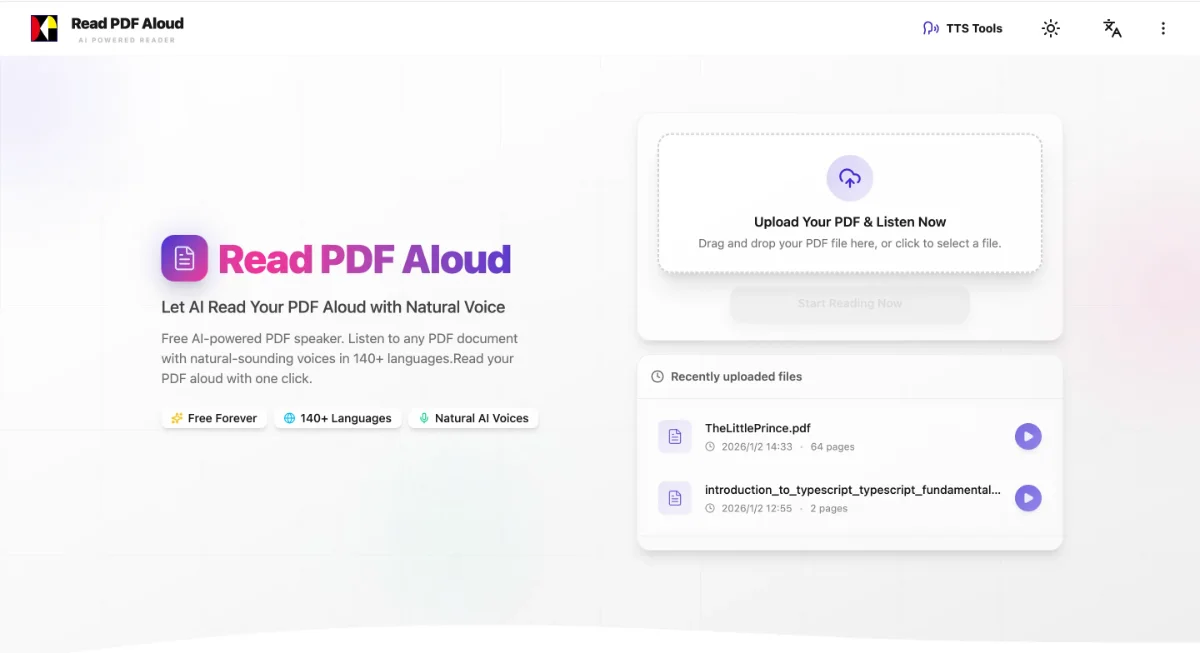
Points forts :
- Totalement gratuit : aucun abonnement ni frais caché.
- Voix propulsées par l’IA : accédez à une grande variété de voix naturelles qui rendent l’écoute agréable.
- Portée mondiale : 142 langues prises en charge, parfait pour les étudiants et les professionnels internationaux.
- Aucune installation requise : fonctionne directement dans votre navigateur, sur n’importe quel appareil.
Rendez-vous simplement sur Read PDF Aloud, téléversez votre fichier et écoutez immédiatement.
Conclusion
Que vous préfériez la simplicité des réglages intégrés de votre téléphone, la puissance d’un navigateur de bureau comme Edge, ou les voix IA haute fidélité d’un outil dédié comme le nôtre, aucune raison de vous battre seul avec de longs documents. Lancez-vous dès aujourd’hui et reprenez le contrôle de votre temps !