Как пользоваться Read PDF Aloud
Подробное руководство по использованию Read PDF Aloud для бесплатного преобразования PDF-документов в аудиокниги с естественным звучанием.
Долго читать PDF-документы с экрана утомительно для глаз. Студенту, который разбирает научные статьи, специалисту, который проверяет отчёты, или тому, кто хочет слушать хорошую книгу, параллельно занимаясь своими делами, прослушивание документов заметно упрощает жизнь.
Read PDF Aloud — бесплатный веб-инструмент, который с помощью современных AI-технологий превращает PDF в естественную речь. В этом руководстве мы пошагово разберём, как пользоваться сервисом, чтобы работать эффективнее.
Почему стоит использовать Read PDF Aloud
Прежде чем перейти к шагам, расскажем, чем выделяется этот инструмент:
- Более 140 языков: поддержка огромного числа языков мира.
- Полностью бесплатно: конвертация PDF в аудио не обойдётся ни в копейку.
Шаг 1: загрузите PDF
Пользоваться инструментом очень просто. При первом визите на главную страницу Read PDF Aloud вы увидите большую область загрузки.
- Перетащите файл: просто перетащите PDF из файлового менеджера компьютера или телефона на страницу.
- Выберите кликом: или нажмите на область, чтобы открыть проводник и выбрать нужный документ.
После загрузки приложение мгновенно разбирает текст. Обработка происходит локально на вашем устройстве, поэтому всё быстро и безопасно.
Шаг 2: выберите язык и голос
Одна из самых сильных сторон Read PDF Aloud — обширная библиотека голосов.
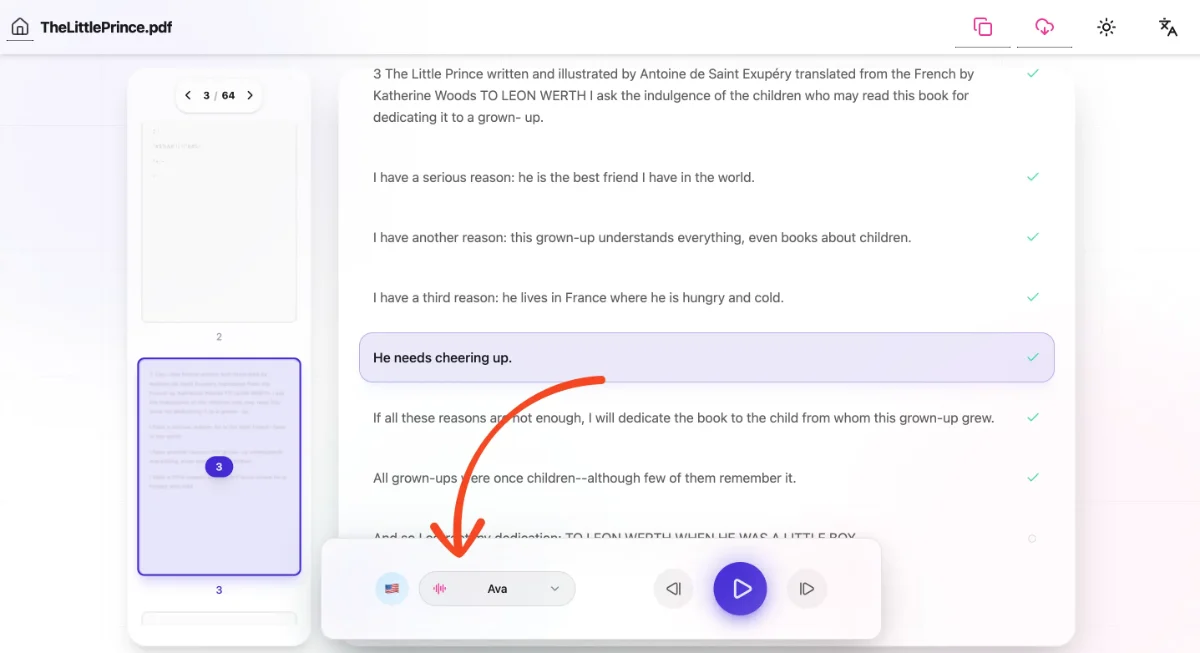
- Выбор языка: нажмите на значок глобуса в панели управления, чтобы открыть меню языков. Доступно более 140 языков, включая английский, испанский, французский, японский и многие другие.
- Выбор голоса: нажмите на меню голосов (рядом со значком языка), чтобы выбрать конкретного диктора. Можно перебирать разные акценты (например, американский или британский английский) и тембры, пока не найдёте тот, что звучит лучше всего.
Шаг 3: слушайте и управляйте воспроизведением
Когда голос выбран, можно начинать слушать.
- Воспроизведение/пауза: нажмите большую кнопку Play в центре панели управления, чтобы начать чтение.
- Навигация: кнопки Вперёд и Назад переключают между предложениями. Удобно, когда нужно переслушать сложный абзац.
- Чтение по клику: можно кликнуть на любое предложение в тексте, и аудио сразу перейдёт к этому месту.
Дополнительные возможности
Экспорт аудио
Хотите слушать офлайн или на другом устройстве? Функция Скачать аудио сохранит озвученный текст в MP3-файл. Это отличный способ собрать собственную аудиокнигу или учебные материалы и слушать их по дороге.
Режим ввода текста
Если под рукой нет PDF, а послушать статью или заметки хочется, используйте режим Text to Voice. Вставьте любой текст в поле ввода, и AI озвучит его теми же качественными голосами.
Советы по использованию
- Работает на мобильных: Read PDF Aloud отлично работает в мобильных браузерах (iOS и Android). Слушайте документы в дороге без установки приложений.
- Изучение языков: тренируйте аудирование, слушая тексты на изучаемом языке.
Начните слушать свои документы уже сегодня и дайте глазам отдохнуть!